
Your days together, counted. Your next hello, counted down.
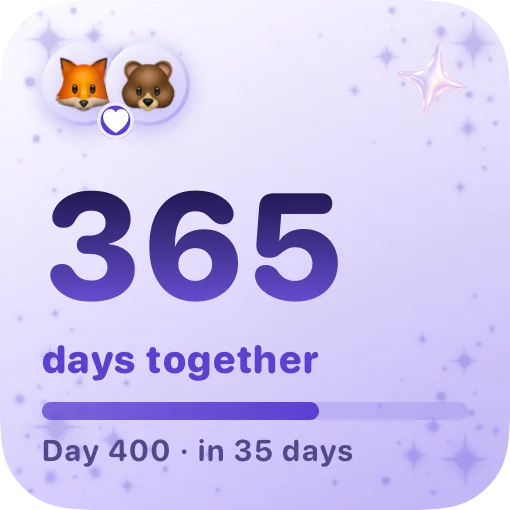
Midnight’s Days Together widget answers “how long have we been together?” every time you look at your iPhone, and its Countdown widget keeps the days until your next visit, trip or anniversary in view. Both read from one shared space, so you and your partner see the same numbers.
What the Days Together widget shows
Days Together is a relationship counter: a big number of whole days since the day your story began, with both of your faces at the top. Under the number it names your next milestone and fills a bar toward it. Milestones fall on every hundredth day and on every anniversary, whichever comes first, so you will see lines like “Day 400 · in 35 days” or “2 years · in 12 days”.
The medium size also shows either the date it all began or one of the photos you have saved together. The count is scheduled to tick over just after midnight, so a new day shows up without you opening the app.
What the Countdown widget shows

Countdown picks the soonest date on your shared list and shows how many days are left in big flip-style digits, with the name you gave it, its little icon and the day it falls on. The day before, it reads “Tomorrow”; on the day itself, “Today”. Once a date has passed, the widget moves on to the next one on your list.
It is a countdown widget for couples rather than for one person: you both add to the same list, so whichever of you books the train, the next hello appears on both phones.
How to set the day your story began
- Open Midnight, go to the Widgets tab and choose Days Together.
- Tap “Set the day your story began”. Once a date is saved, the button reads “Change the first day”.
- Pick the day in the calendar and tap Save.
You can also change it in Settings, under Our anniversary. Settings opens from the gear on the Home tab.
There is one date per couple. The partner who starts your shared space is asked for it while setting up, and when the other partner joins, their phone takes the same date. After that, either of you can change it and the change reaches both phones. Any day in the past works: a first date, the night you made it official, a wedding day.
How to add a countdown
- In the Widgets tab, choose Countdown and tap Our dates. The same list is in Settings.
- Tap the plus button, give the date a name such as “Paris weekend” or “Airport pickup”, pick the day and, if you like, add a note for the two of you.
- Choose an icon (a moon, a plane, a coffee cup, a cake, popcorn or a heart) and tap Save.
Dates you add are shared with your partner, and either of you can edit or delete them. Countdown shows them once you are linked. Dates do not repeat on their own, so after an anniversary has passed, add next year’s.
How to add the widgets to your Home Screen or Lock Screen
- Install Midnight on both phones and invite your partner into your shared space.
- On your iPhone Home Screen, touch and hold an empty area, tap Edit, then Add Widget.
- Search for Midnight, choose Days Together or Countdown, pick a size, tap Add Widget, then Done.
Both widgets also come in Lock Screen sizes: a small circle, a rectangle and a single line above the clock. On the Lock Screen, Days Together draws a ring that fills toward your next milestone. To add one, touch and hold the Lock Screen, tap Customize, choose the Lock Screen and tap the widget area. Apple’s guide to adding and editing iPhone widgets covers the system steps, and Midnight has its own walkthrough in the Widgets tab.
Ideas for what to count down to
A countdown works best when it points at something you are both looking forward to. A few that couples keep on their screens:
- The next visit, if you live apart, named after the place you are meeting.
- The airport pickup, so the last few days feel shorter.
- Your anniversary, so it never sneaks up on either of you.
- Their birthday, with a gift idea tucked into the note.
- A trip you have booked, or one you are still saving for.
- Moving in together, or the day the long distance ends.
- A concert, a festival or a friend’s wedding you are going to together.
- The end of exams, a big deadline or a run of night shifts.
- A planned date night, even if it is takeaway and a film on the sofa.
- The first day of a holiday, when both phones can finally go quiet.
If you live apart, our long-distance relationship tips make the case for setting an end date, even a rough one. A countdown keeps it in sight, and the long-distance widgets add the miles between you.
Relationship milestones worth celebrating
Days Together flags every hundredth day and every anniversary. Some numbers deserve a little more than a glance:
- 100 days: the first real number. A good excuse to recreate your first date.
- 365 days: one year, or 366 days if your first year includes 29 February.
- 500 days: about 16 months in. Almost nobody celebrates it, which is the charm.
- 1,000 days: a little under two years and nine months. Write each other a love letter.
- 2,000 days: about five and a half years.
- 10,000 days: a little over 27 years and four months. Throw the party.
For ways to mark the day itself, see our creative anniversary ideas and how to celebrate small wins in your relationship.
How long have we been together? Counting it by hand
Count the whole days from your first day to today. A year is 365 days, or 366 when it includes 29 February, so two years together is 730 or 731 days. Midnight makes the same count, starting from zero on the day itself, and handles leap years for you. If you prefer to call your first day “day one”, add one to whatever the widget shows.
Questions about days together and countdowns
How do I see how many days we’ve been together on my iPhone?
Add Midnight’s Days Together widget. Set the day your story began in the app, then touch and hold your Home Screen, tap Edit, then Add Widget, and search for Midnight. The widget counts every whole day since that date.
Can both of us see the same counter?
Yes. Days Together counts from one date per couple, and Countdown reads one shared list of dates, so once you are linked both phones show the same numbers. Each of you still picks your own widget theme.
Does it count from our first date or when we linked?
From the day you choose. Midnight asks when your story began, so it can be your first date, the day you made it official or your wedding day. Linking your accounts does not reset the count.
Can I add it to the Lock Screen?
Yes. Days Together and Countdown both come in circular, rectangular and inline Lock Screen sizes. Touch and hold the Lock Screen, tap Customize, choose the Lock Screen, then tap the widget area and pick Midnight.
Do we need two subscriptions?
No. Midnight is a free download, but the app and every widget need Midnight Pro, weekly or yearly. One subscription covers both linked partners, and eligible new subscribers can start the weekly plan with a free trial.
Is there a version for Android?
Not at the moment. Midnight is for iPhone and iPad running iOS 26 or iPadOS 26 or later.